
 EN
EN  SV
SV Before you begin: confirm that AlmRecorder has Settings → MCP. If it is missing, install a version with MCP support.
Let your agent handle the setup
Copy the complete task, paste it into your agent, then append AlmRecorder’s copied configuration. The secret token is included only when you paste it yourself.
Preview the instructions
Configure AlmRecorder as a local MCP server for Claude Desktop on this Mac.

Work carefully and perform the setup for me if you have filesystem and terminal access. If you cannot edit local files, return the exact ready-to-paste file change and tell me where it belongs.

1. First confirm that AlmRecorder shows Settings → MCP, is in its final app location, and is open.
2. Ask me to enable Enable local MCP server, wait for Listening on …, and choose Copy configuration.
3. I will append the copied JSON configuration below this task. Ask me for it if it is missing.
4. Treat ALMRECORDER_MCP_TOKEN like a password. Never repeat it in your response, log it, or put it in Git, a support issue, or a shared project file.
5. Open Settings → Developer → Edit Config and merge the almrecorder entry under mcpServers in ~/Library/Application Support/Claude/claude_desktop_config.json. Do not replace other servers.
6. Use the exact command, ALMRECORDER_MCP_SOCKET, and ALMRECORDER_MCP_TOKEN copied from AlmRecorder. The transport is local stdio and AlmRecorderMCPBridge takes no arguments.
7. Do not alter or delete any other client settings. Show a diff or describe exactly what changed.
8. Quit Claude Desktop completely and reopen it.
9. Ask the agent to call get_library_status and report the recording count. Then call list_recordings with limit: 1. Do not change anything.
10. Do not enable AlmRecorder’s content or write permissions. I will choose those myself after the read-only check succeeds.

ALMRECORDER COPIED CONFIGURATION:
[Paste Copy configuration from AlmRecorder here]
Prepare AlmRecorder
Move AlmRecorder to Applications and keep it open whenever Claude uses it. Open every sensitive recording and turn off Allow MCP clients to access this recording; use Hide from MCP on privacy tags. In Settings → MCP, leave both content and changes permissions off, turn on Enable local MCP server, wait for Listening on …, and choose Copy configuration.
The token is copied—not revealed
AlmRecorder intentionally masks the real token in the on-screen preview. There is no visible token field to hunt for.
- Open Settings → MCP in AlmRecorder.
- Turn on Enable local MCP server and wait until Status says Listening on ….
- Choose Copy configuration. The clipboard now contains the command, socket, and real ALMRECORDER_MCP_TOKEN.
Paste the configuration directly where this guide tells you. Treat it like a password and clear the clipboard after the connection works.
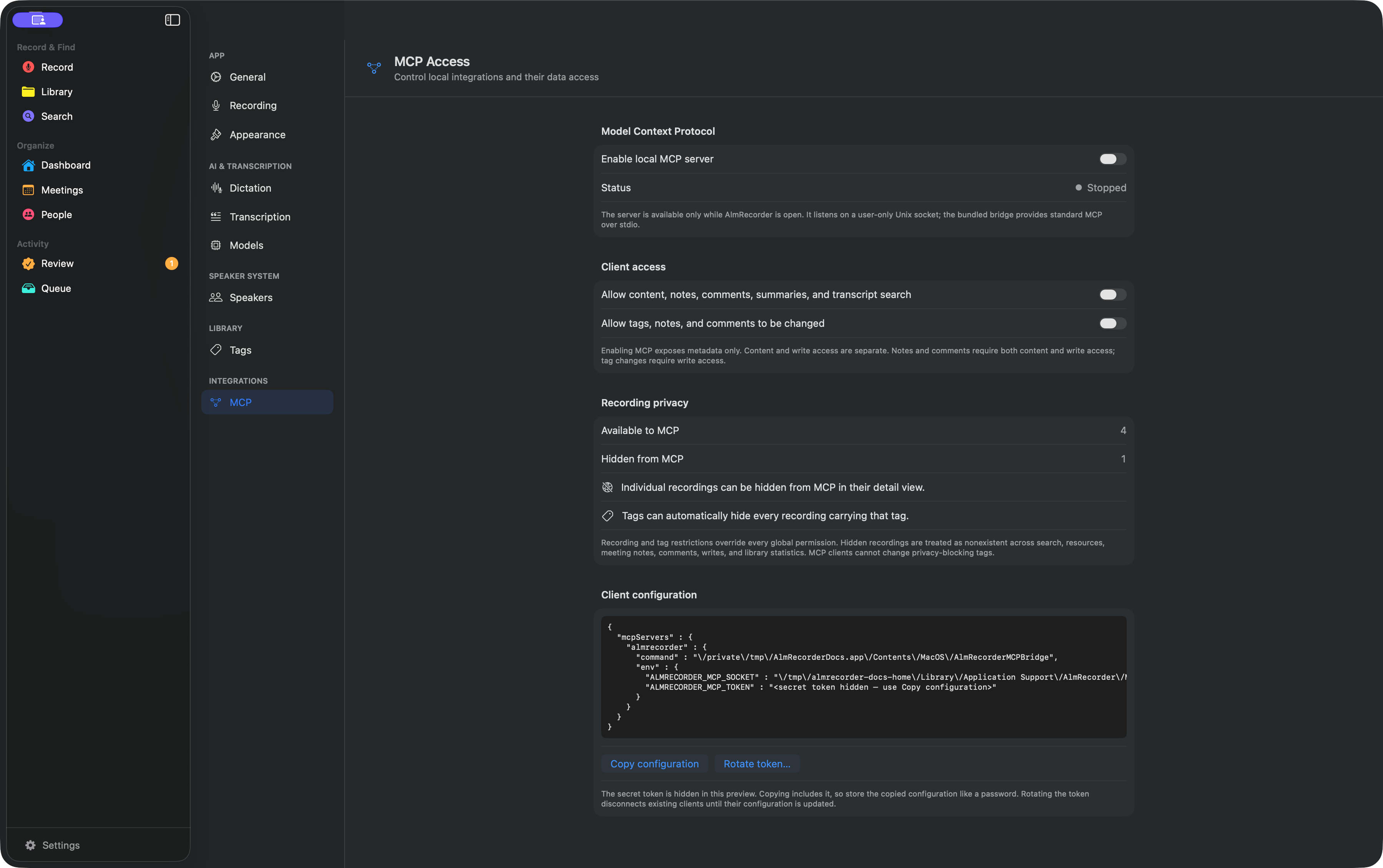 Choose Copy configuration
Permission boundary: Allow content, notes, comments, summaries, and transcript search unlocks those reads. Allow tags, notes, and comments to be changed unlocks tag changes; notes and comments require both grants. Start with neither.
This is a manual local-server setup. AlmRecorder does not currently ship a one-click Claude Desktop extension.
Add it to Claude Desktop
- In the macOS menu bar, choose Claude → Settings… → Developer → Edit Config.
- Open
claude_desktop_config.json. - If the file is empty, paste the complete configuration copied from AlmRecorder. If it already contains servers, merge only the
almrecorderentry under the existingmcpServersobject.
The result has this shape, but your copied values contain the real path and token:
{
  "mcpServers": {
    "almrecorder": {
      "command": "/Applications/AlmRecorder.app/Contents/MacOS/AlmRecorderMCPBridge",
      "env": {
        "ALMRECORDER_MCP_SOCKET": "/Users/you/Library/Application Support/AlmRecorder/MCP/mcp.sock",
        "ALMRECORDER_MCP_TOKEN": "paste the token copied from AlmRecorder"
      }
    }
  }
}
Do not paste a second top-level mcpServers object and do not overwrite other server entries. Save the file, fully quit Claude Desktop with ⌘Q, and reopen it. In a conversation, open Add files, connectors, and more → Connectors → Manage connectors and confirm AlmRecorder is present.
Check the connection
Ask Claude:
Use AlmRecorder’s
get_library_statustool and report the recording count. Then calllist_recordingswithlimit: 1. Do not change anything.
Seeing the connector is not enough—the first app-backed tool call is the real test. Enable transcript content or changes in AlmRecorder only after this read-only check succeeds.
If it fails
- Fully quit Claude Desktop; closing its window does not reload local servers.
- Validate the JSON: one
mcpServersobject, commas between entries, and absolute paths. - Check
~/Library/Logs/Claude/mcp*.logfor analmrecorderlaunch error. - If AlmRecorder moved or the token rotated, copy fresh configuration and replace that one entry.
To disconnect, remove almrecorder from Claude’s mcpServers object and restart Claude. The token in this file is secret—never include the config in a support post.
Official Claude Desktop local MCP guide · Privacy in AlmRecorder · General troubleshooting