
 EN
EN  SV
SV Record both sides of a conversation
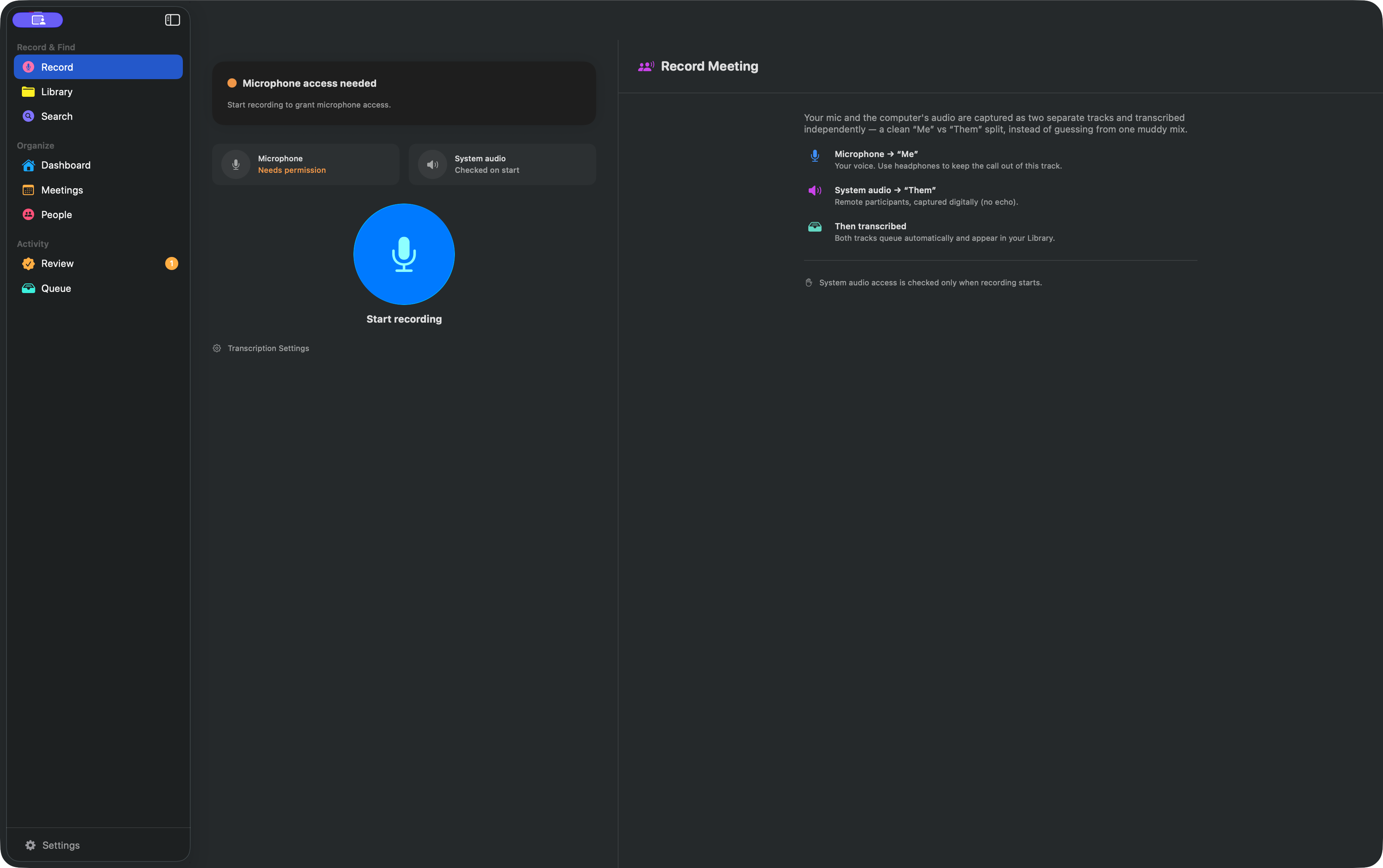
Open Record and press the large microphone button. AlmRecorder automatically attempts two separate sources:
- Microphone → Me captures your voice.
- System audio → Them captures remote participants digitally through macOS Screen Recording access.
The cards show which sources are available; there is no manual source selector. Use headphones to keep remote voices out of the microphone track, and follow the consent rules that apply to your conversation.
When you stop, the tracks enter the transcription queue and the completed result appears in Library.
Import audio you already have
Choose Library → Import or File → Import Audio Files…. Drop files onto the window or select several at once. Imported audio does not need recording permissions. Keep the original file available for source-audio playback, review, cleanup, or retranscription—not only while the first job runs.

Connect Apple Voice Memos
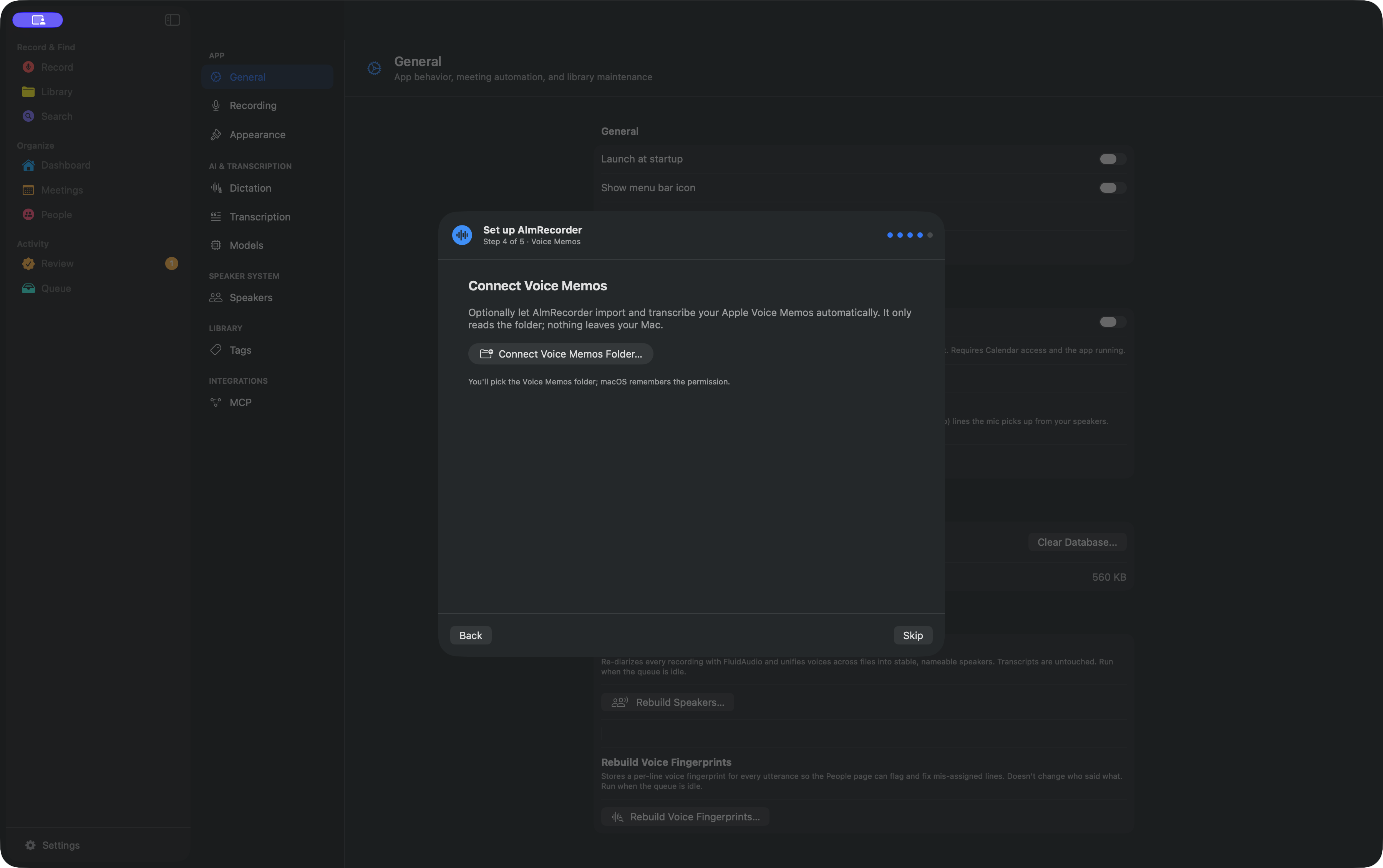
Voice Memos is optional. Connect it during setup, use Transcription → Process Voice Memos, or choose Queue → Add Voice Memos. AlmRecorder can discover older unprocessed memos as well as future ones, so review Queue after connecting a large library.
Watch work in Queue
Queue has four tabs: Transcription, Embeddings, Insights, and Cleanup. You can keep browsing completed recordings while background work continues.
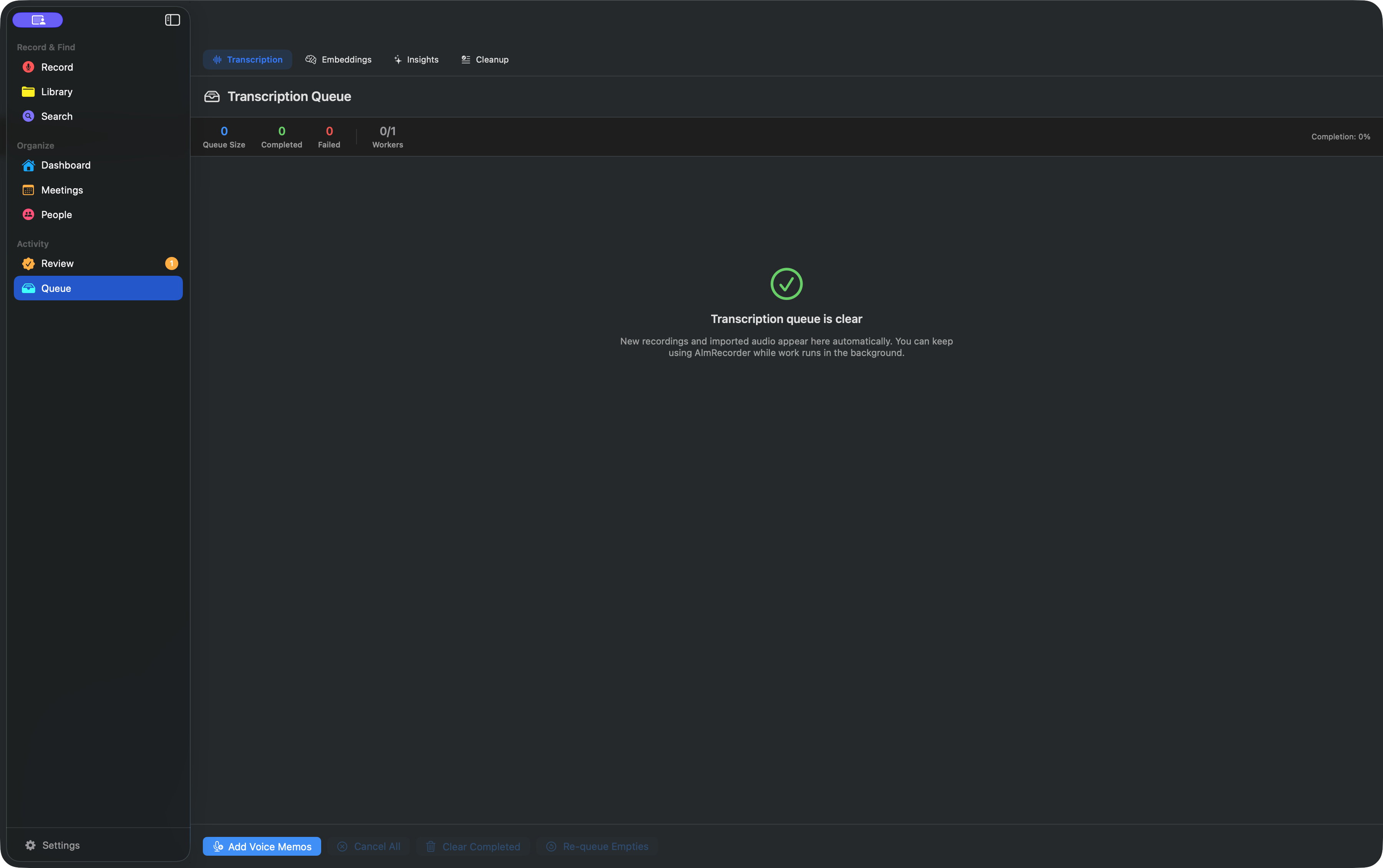
If a job fails, confirm the model is installed, the source file still exists, and enough disk space remains before retrying.
Search first, refine afterward
With the recommended settings, VibeVoice 4-bit creates the foreground transcript, timestamps, and local speaker turns. AlmRecorder saves those rows immediately, so Keyword search works without waiting for every quality stage. Qwen text embeddings run or enter the Embeddings queue, making Best and Semantic search available as indexing completes.
The maximum-quality background path then reuses those exact VibeVoice turns, runs Whisper Large v3 Q5_0 independently, and asks Gemma 4 12B Q5_K_M to listen to matching audio clips. Gemma can repair high-confidence text, but it cannot change the locked speaker, time, or turn boundary. Any changed rows are indexed again automatically.
Heavy stages run one at a time, yield to new foreground transcription, and remain pending when the selected model or safe memory headroom is unavailable. AlmRecorder does not silently replace a selected model with a smaller one.