
 EN
EN  SV
SV Before you begin: confirm that AlmRecorder has Settings → MCP. If it is missing, install a version with MCP support.
Let your agent handle the setup
Copy the complete task, paste it into your agent, then append AlmRecorder’s copied configuration. The secret token is included only when you paste it yourself.
Preview the instructions
Configure AlmRecorder as a local MCP server for Visual Studio Code on this Mac.

Work carefully and perform the setup for me if you have filesystem and terminal access. If you cannot edit local files, return the exact ready-to-paste file change and tell me where it belongs.

1. First confirm that AlmRecorder shows Settings → MCP, is in its final app location, and is open.
2. Ask me to enable Enable local MCP server, wait for Listening on …, and choose Copy configuration.
3. I will append the copied JSON configuration below this task. Ask me for it if it is missing.
4. Treat ALMRECORDER_MCP_TOKEN like a password. Never repeat it in your response, log it, or put it in Git, a support issue, or a shared project file.
5. Run MCP: Open User Configuration. Add almrecorder under the top-level servers object with type stdio. Use a promptString input with password: true for ALMRECORDER_MCP_TOKEN; do not hardcode the token in mcp.json. Preserve other servers and inputs.
6. Use the exact command, ALMRECORDER_MCP_SOCKET, and ALMRECORDER_MCP_TOKEN copied from AlmRecorder. The transport is local stdio and AlmRecorderMCPBridge takes no arguments.
7. Do not alter or delete any other client settings. Show a diff or describe exactly what changed.
8. Start the server from CodeLens or MCP: List Servers and approve the trust prompt.
9. Ask the agent to call get_library_status and report the recording count. Then call list_recordings with limit: 1. Do not change anything.
10. Do not enable AlmRecorder’s content or write permissions. I will choose those myself after the read-only check succeeds.

ALMRECORDER COPIED CONFIGURATION:
[Paste Copy configuration from AlmRecorder here]
Prepare AlmRecorder
Keep AlmRecorder in Applications and open. On every sensitive recording, turn off Allow MCP clients to access this recording; use Hide from MCP on privacy tags. In Settings → MCP, leave content and changes permissions off, turn on Enable local MCP server, wait for Listening on …, and choose Copy configuration.
The token is copied—not revealed
AlmRecorder intentionally masks the real token in the on-screen preview. There is no visible token field to hunt for.
- Open Settings → MCP in AlmRecorder.
- Turn on Enable local MCP server and wait until Status says Listening on ….
- Choose Copy configuration. The clipboard now contains the command, socket, and real ALMRECORDER_MCP_TOKEN.
Paste the configuration directly where this guide tells you. Treat it like a password and clear the clipboard after the connection works.
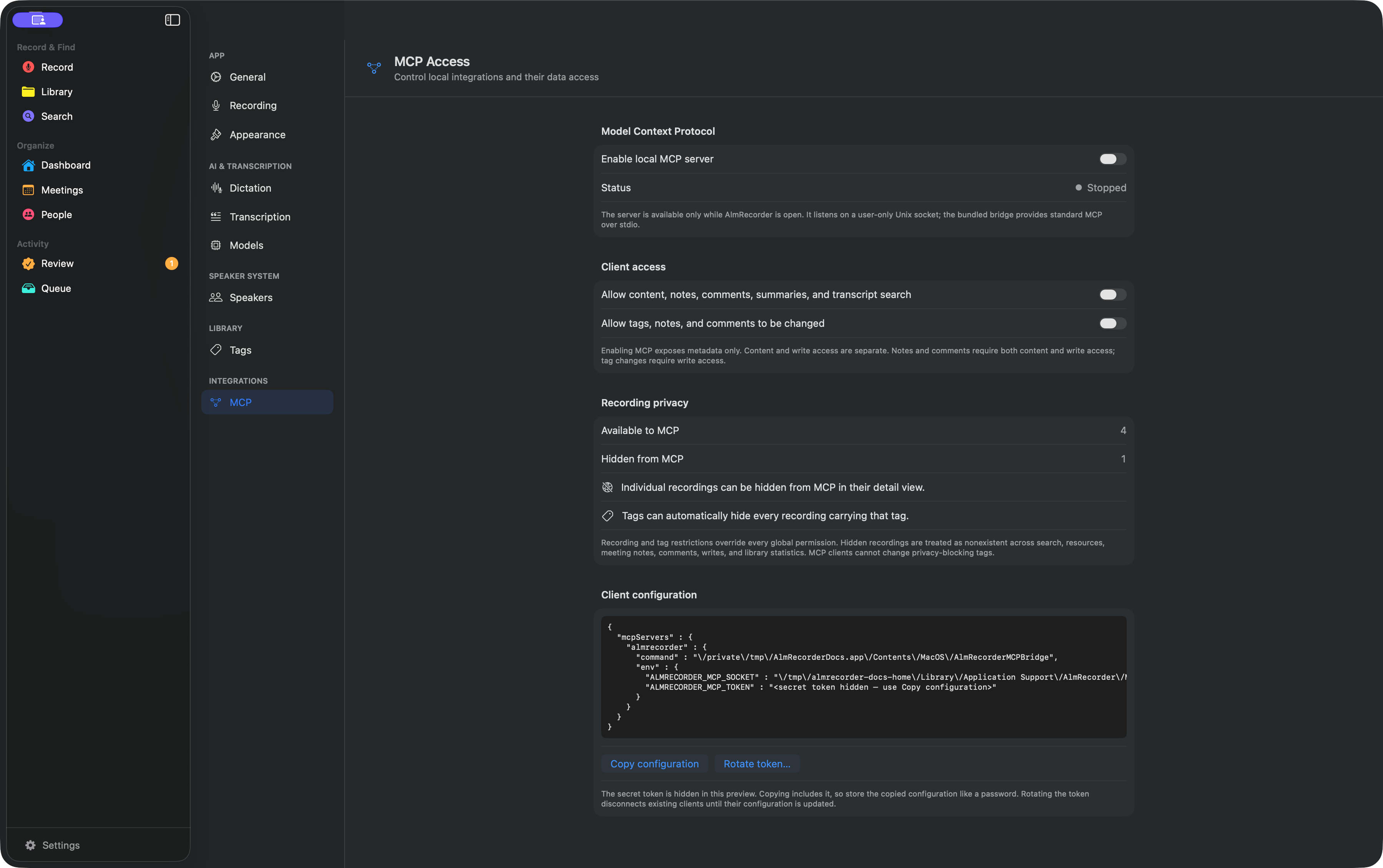 Choose Copy configuration
Permission boundary: Allow content, notes, comments, summaries, and transcript search unlocks those reads. Allow tags, notes, and comments to be changed unlocks tag changes; notes and comments require both grants. Start with neither.
Add it to VS Code
- Open the Command Palette and run MCP: Open User Configuration. Use the user profile—not
.vscode/mcp.jsonin a repository—because the configuration contains your personal token. - Add the
almrecorderentry under the top-levelserversobject. - VS Code requires
"type": "stdio"; AlmRecorder’s copied JSON does not include it.
{
  "servers": {
    "almrecorder": {
      "type": "stdio",
      "command": "/Applications/AlmRecorder.app/Contents/MacOS/AlmRecorderMCPBridge",
      "env": {
        "ALMRECORDER_MCP_SOCKET": "/Users/you/Library/Application Support/AlmRecorder/MCP/mcp.sock",
        "ALMRECORDER_MCP_TOKEN": "${input:almrecorder-token}"
      }
    }
  },
  "inputs": [
    {
      "type": "promptString",
      "id": "almrecorder-token",
      "description": "AlmRecorder MCP token",
      "password": true
    }
  ]
}
Use the exact command and socket from AlmRecorder. On first start, the password input asks for a token: in AlmRecorder’s copied JSON, copy only the string value beside ALMRECORDER_MCP_TOKEN, paste that value into the prompt, then clear the clipboard. VS Code stores it securely instead of leaving it in plain text. Merge these entries without replacing existing servers or inputs. Save the file, run MCP: List Servers, select almrecorder, and choose Start or Restart. Accept VS Code’s first-start trust prompt only after confirming that the command points inside your AlmRecorder app.
If MCP Servers is enabled in Settings Sync, this user configuration may follow you to other devices. Keep the server local to this Mac or turn that sync category off.
Check the connection
In Chat’s Agent mode, ask:
Use AlmRecorder’s
get_library_statustool and report the recording count. Then calllist_recordingswithlimit: 1. Do not change anything.
This read-only response confirms that VS Code reached the open app.
If it fails
- Unknown configuration: VS Code uses
servers, not AlmRecorder’s copiedmcpServerskey. - Server will not start: ensure
typeisstdioandcommandis an absolute path to the bridge. - Tool call fails: open AlmRecorder, enable its MCP server, and replace stale token/socket values.
- Workspace prompts or sharing risk: move the entry to user configuration and remove secrets from
.vscode/mcp.json.
Remove the almrecorder entry and stop the server to disconnect VS Code.
Official VS Code MCP configuration · Privacy in AlmRecorder · General troubleshooting